
Knowledge · Clone Files Checker
How to Find and Delete Duplicate Files on Mac
Downloads and Documents fill the same way on a Mac: a PDF gets saved twice, a video sits next to Copy of the same video, and the browser saves a zip again under a new name.
A duplicate file finder on Mac groups those copies so you can keep one file and remove the rest.
Direct answer: macOS does not include a duplicate-file finder. Finder can sort and search by name or size. It does not compare the contents of files across folders. When the mess is a folder of PDFs, videos, archives, and downloads, Clone Files Checker File Search groups those copies, lets you keep one, and moves the extras.
Key takeaways
- There is no Mac setting that finds duplicate files.
- The same name or the same size is a clue. It does not prove the files match.
- Finder Delete sends a file to the Trash. That still leaves you to spot the copy yourself.
- Clone Files Checker scans the folders you pick and groups content matches.
- Move extras first. On this Mac app, Delete follows the Move to Recycle Bin setting.
- Similar photos, and files that live only in iCloud or Google Drive, are different jobs.
Why the same file shows up twice
Copies rarely live in one folder named Duplicates. The browser downloads the same PDF, installer, or zip again, and copy and paste creates a Copy of beside the file you meant to keep. A backup folder often sits next to the folder you actually use, the same video ends up on the Mac and on a USB drive, or a file you also saved in iCloud Drive sits next to a local copy.
Compare methods
| Method | Use it for | Compares file content? | After you find a copy |
|---|---|---|---|
| Finder sort / search | A small folder, obvious Copy of names | No | Delete sends the extra to the Trash |
| Clone Files Checker File Search | PDFs, videos, archives, and mixed folders | Yes, for files that share a size | Review the group, then Move or Delete |
Use Finder when you can already see the copy. Use a scanner when the same file has a new name, or when it sits in more than one folder.
Method 1: Spot obvious copies in Finder
This is the built-in path. It does not detect duplicates. It makes the obvious ones easier to see.
- Open Finder and go to Downloads, Documents, or the folder you suspect.
- Switch to List view.
- Sort by Name, then by Size.
- Look for
Copy of, or two files with the same size and a near-identical name. - Open both if you are unsure. Keep one. Press Delete so the extra goes to the Trash.
What this is good at
- A handful of files in one folder.
- No extra software.
- The Trash still has the extra until you empty it.
Limits
- A different filename hides the same PDF or video.
- The search only shows the folder you are in.
- Matching size is a hint. Two different files can share a size.
Method 2: Scan folders with Clone Files Checker
Clone Files Checker is Sorcim’s Windows and Mac app for exact duplicate files. This article is the Mac workflow. On Mac it supports macOS Sequoia, Sonoma, Ventura, and Monterey. It also runs on macOS Catalina and later.
File Search groups files that share a size, then compares a fingerprint of the start and the end of each file. Files with a unique size never reach that step. Treat the groups as content matches to review. This is not a full-file forensic compare.
There is no similar-photo mode on this desktop app. Bursts and resized pictures stay with PictureEcho.
How to find duplicate files on Mac with Clone Files Checker
Counts, sizes, and dates in the screenshots are one scan. They are not a typical result.
1. Choose the folders and file types
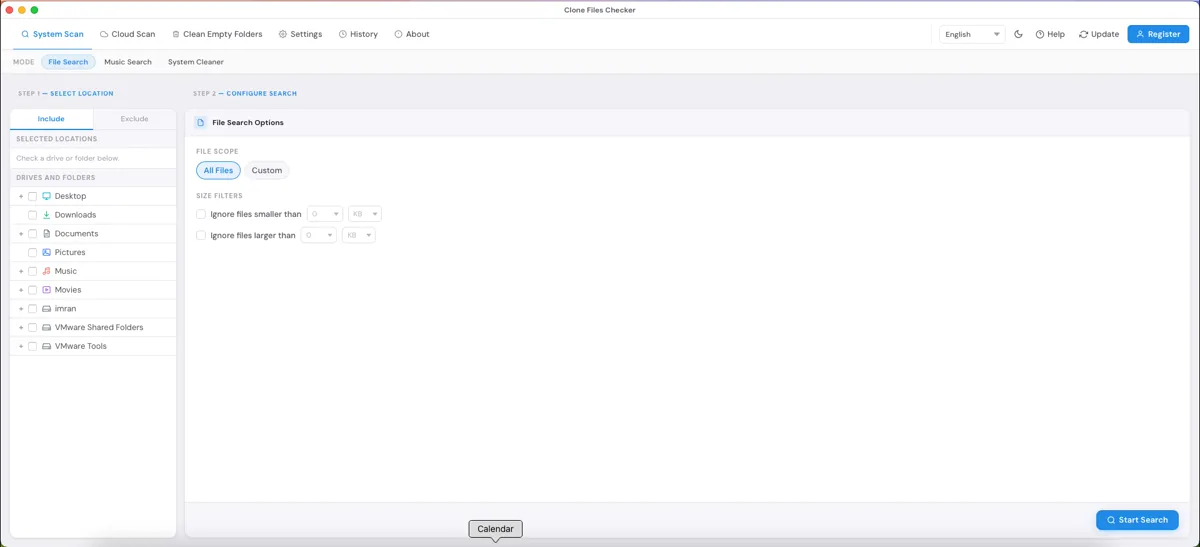
- Install Clone Files Checker and open System Scan.
- Leave the mode on File Search.
- On Include, tick the folders you want. Downloads is a good first folder.
- All Files scans every type. Custom limits the scan to Documents, Archives, Music, Videos, or Images. Size filters are optional. Leave them off unless you want to skip very small or very large files.
A USB drive or an external disk appears when that disk is connected. Tick the folder. The app does not walk an iCloud or Google Drive account from this window.
2. Start the search
- Click Start Search.
- If a previous result is still saved, choose Load Last Scan Result or Start New Scan.
- Wait for the scan to finish, then open the results.
3. Keep one file in each group
- Use the type pills when you only want Documents, Archives, Music, Videos, or Images.
- Open a group. Turn on Show Preview and use File Inspector when you need to see the file. Show in Finder if the preview is not enough.
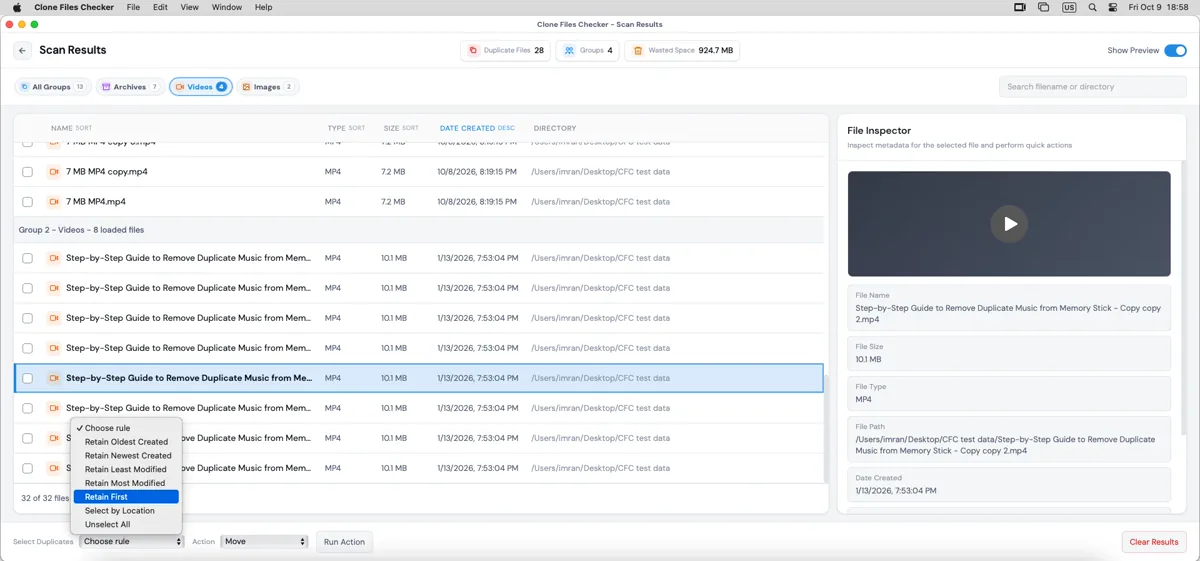
- Click Select Duplicates, then Choose rule. The rules are Retain Oldest Created, Retain Newest Created, Retain Least Modified, Retain Most Modified, Retain First, and Select by Location.
- A retain rule leaves one file in the group unchecked and checks the others. Open that keeper before you continue.
- Select by Location checks files in a folder you pick, and it can check the copy you meant to keep. Read the checks.
- Unselect All clears the checks. Use a retain rule, then spot-check.
4. Move the extras, or delete only what you have checked
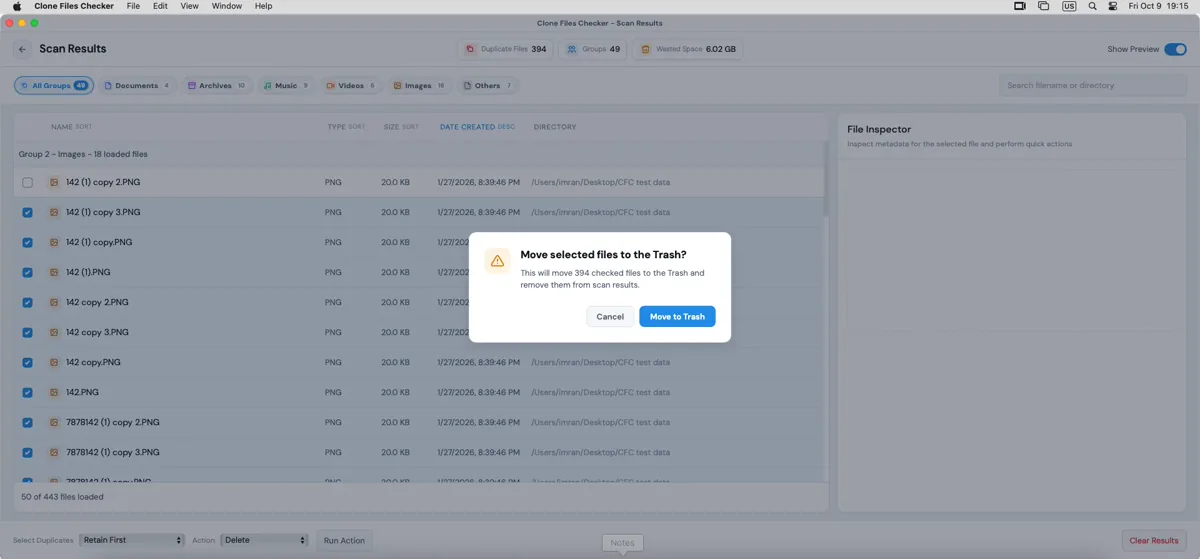
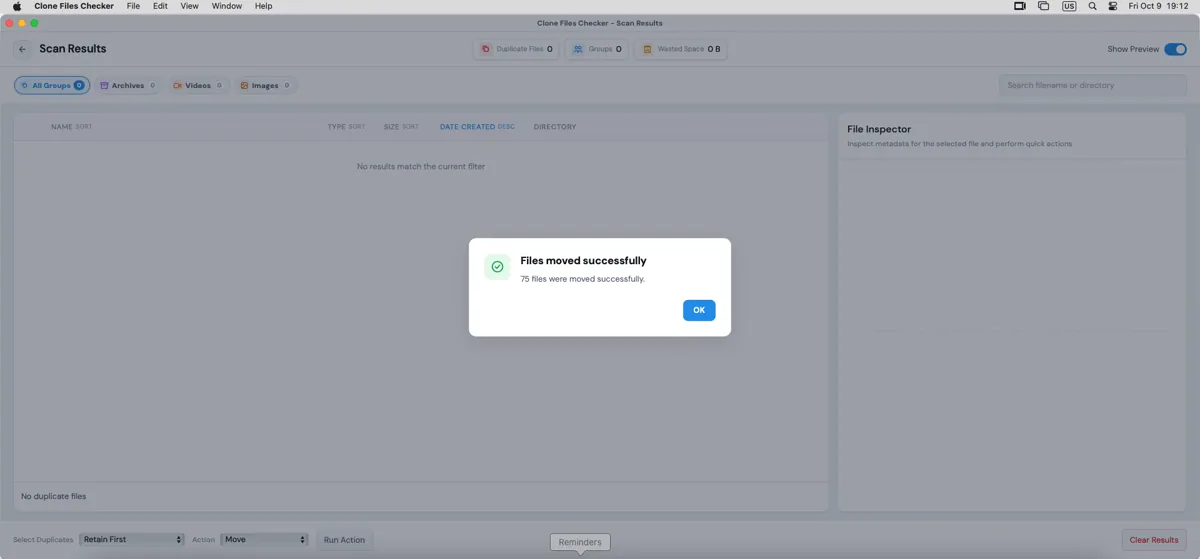
- Set Action to Move. Click Run Action and pick a folder. The checked files leave the scanned folder and sit where you sent them. Open that folder before you delete anything.
- Delete follows Settings → General → Move to Recycle Bin. When that switch is on, the confirm dialog asks to move the checked files to the Trash. Empty the Trash later if you want the space back.
- The free scan can move or delete up to 10 duplicate groups. Cleaning more groups needs a license. The price is on the live register page.
- History lists completed move and delete batches. It is a log. It does not put the files back.
What this scan is, and what it leaves alone
| Job | Where it belongs |
|---|---|
| PDFs, videos, zips, and mixed Downloads on the Mac | Clone Files Checker File Search |
| Photos that look alike, bursts, and resized exports | Duplicate photos on Mac |
| Google Drive, Dropbox, or OneDrive in the browser | Cloud Duplicate Finder, a separate web app |
| Duplicate files on a phone | Clone Files Checker for Android, a different app |
| Big, old, or unused files that are not copies | System Cleaner inside this app. That pass does not look for duplicates |
The Cloud Scan pane does not connect Google Drive, Dropbox, OneDrive, Box, or Amazon S3 inside this app. A folder that is actually on the Mac can be ticked like any other folder.
Music and empty folders
These are separate modes. They are not a second File Search.
- Music Search compares the tags you tick: Title, Artist, Album, Track, Duration, or Bit Rate. File Content is a fallback when a selected tag is missing. Tag matches can group different songs that share a title, so read the group before you remove anything. This scan does not edit a music player.
- Clean Empty Folders can remove nested empty folders or only the top level. Restore Empty Folder creates that folder path again. It does not bring back files that used to be inside.
- System Cleaner finds big files, old files, or files that have not been used, when you turn at least one of those rules on. Review that list on its own. It is not a duplicate result.
Safety checklist before you delete
- Start with one folder, such as Downloads.
- Use a retain rule, then open the file that stayed unchecked.
- Move first. Delete only after you have opened the keeper.
- In Finder, Delete can be undone from the Trash until you empty it.
- In Clone Files Checker, open Settings and read Move to Recycle Bin before you run Delete. History can also show a batch that was deleted from disk.
- Photos that only look the same belong in the duplicate photos guide.
FAQ
Does the Mac have a built-in duplicate file finder?
No. Finder sorts and searches. It does not group copies by content.
Can Finder find duplicate files?
It can show Copy of and matching sizes when you sort or search. It cannot tell you that two files with different names are the same content.
How do I delete duplicate files on a Mac without losing the original?
Keep one file in the group. Move the extras to a folder you can still open. Delete only after you have checked the keeper. In Finder, Delete uses the Trash.
Does Clone Files Checker use the Trash on Mac?
Check Settings → General → Move to Recycle Bin first. When that switch is on, Delete asks to move the checked files to the Trash. The same History list can also record a batch as deleted from disk. Move puts the files in a folder you choose either way.
Will this work on an older Mac as well as the current one?
It supports macOS Sequoia, Sonoma, Ventura, and Monterey. Macs on Catalina and later are legacy support. The steps above are the Mac app. The Windows how-to is a separate article.
Can Clone Files Checker find similar photos?
No. File Search groups content matches. Bursts, crops, and resized pictures are the duplicate photos guide.
Does the desktop app scan iCloud or Google Drive?
No. Cloud Scan points to Cloud Duplicate Finder in the browser. A folder that is stored on the Mac can be included as a local folder. iCloud Photos and the Photos library are the duplicate photos guide.
Is the scan free?
The scan is free. Move and Delete stop after 10 duplicate groups until you register. Check the live register page for the current price.
Clean the folder you actually use
Finder is enough for a few Copy of files. For a Downloads folder full of PDFs, videos, and zips, scan that folder, keep one file in each group, and move the extras before you delete.
Use the button below to go to clonefileschecker.com.