
Knowledge · PictureEcho
How to Find and Delete Duplicate Photos on Mac
Pictures pile up in more than one place. The Photos library holds an import. Downloads holds the same JPEG the browser saved. A burst of eight near-matches sits next to a smaller export of the same shot.
A duplicate photo finder on a Mac groups those copies so you can keep one and remove the rest.
Direct answer: The Photos app on macOS Ventura and later collects duplicates it detected and lets you merge them. Merged copies go to Recently Deleted for 30 days. Finder can sort a folder by name or size. Neither one walks Desktop, Downloads, or a camera card that was never imported, and neither one is a similarity slider for bursts and edits. When the leftover job is visual, PictureEcho scans the folders you choose, or the Photos library, and lets you review groups before anything is removed.
Key takeaways
- Photos → Duplicates (under Utilities) is the built-in merge. Apple documents it for macOS Ventura and later.
- Finder helps you spot obvious names. It does not compare how two pictures look.
- Pictures that never entered Photos are a folder scan, not a Photos album.
- Inside a Photos library, do not delete the library package in Finder. Use Fix Duplicates, then delete the photos inside Photos.
- iCloud files that are not on the disk are skipped until they are downloaded.
Why duplicate photos show up on a Mac
Copies are rarely one album named Duplicates.
- A phone import lands in Photos, and the same files stay in a folder from Image Capture or a camera card.
- AirDrop, Mail, and a browser each save a new filename.
- An editor export sits next to the original JPEG or RAW.
- A burst or a crop looks like one moment and takes several files.
- iCloud Photos keeps a full-size original in the cloud while the Mac only has a placeholder.
Exact copies waste space. Similar photos waste space and make the library harder to browse. Treat them as two jobs.
Compare methods
| Method | Use it for | Finds similar / burst shots? | Notes |
|---|---|---|---|
| Photos → Duplicates | Duplicates already in the Photos library | Only what Photos put in that collection | Merge, then Recently Deleted for 30 days. macOS Ventura and later |
| Finder sort / search | A small folder, obvious copy names | No | You are the comparison |
| PictureEcho folder scan | Desktop, Downloads, imports, external drives | Yes, in Similar mode | Review, then Trash or Move |
| PictureEcho Photos library | Similar and exact groups inside Photos | Yes, in Similar mode | Fix Duplicates, then delete inside Photos |
Start in Photos if the copies already live in the library. Use a folder scan when the files never went through Photos.
Method 1: Merge duplicates in the Photos app
Apple’s steps are in Remove duplicate photos and videos on Mac.
- Open Photos.
- In the sidebar, click Duplicates under Utilities. If you do not see it, hold the pointer over Utilities and click the button that shows the items under it.
- If you use an iCloud Shared Photo Library, open the Library menu in the toolbar and choose Both Libraries.
- Select the duplicates. You can select one row or several. Command-A selects all of them.
- Click Merge, then confirm Merge in the dialog.
Photos keeps one item where those duplicates were. The removed copies go to Recently Deleted. You can recover them for 30 days, or delete them there when you want the space back.
That collection is photos and videos Photos already analyzed. It does not list a JPEG that only exists in Downloads. It also does not give you a slider for “a bit similar.” If a burst never appears under Duplicates, Photos is finished with that job.
Do not delete the Photos library file in Finder to clean duplicates. That package is the library.
Method 2: Spot obvious copies in Finder
Open the folder in Finder. Sort by name or size. Quick Look is enough when one file is clearly Copy or (1) of another.
Finder does not group a cropped export with the original, or a RAW with the JPEG of the same frame. There is no merge button. For a large folder of near-matches, stop here and scan.
How to find duplicate photos on Mac with PictureEcho
PictureEcho is the desktop app for exact and similar photos on the Mac. The download page lists macOS Sequoia, Sonoma, Ventura, Monterey, and Catalina and later, on Intel and Apple Silicon. Check that page if your macOS is older. This article does not quote an app version.
1. Scan a folder or the Photos library
- Install PictureEcho from the PictureEcho website.
- For files outside Photos, open Scan → System Scan, click Add Path, and choose Downloads, Desktop, an import folder, or an external drive. You can add more than one folder.
- For pictures already in Photos, open Library Scan and scan Photos Library when it shows Ready to scan. The same screen lists Adobe Lightroom Classic and Adobe Lightroom CC when those apps are installed.

A Photos library scan is not a Finder delete. The cleanup step for that scan is Fix Duplicates, below.

2. Choose Similar or Exact
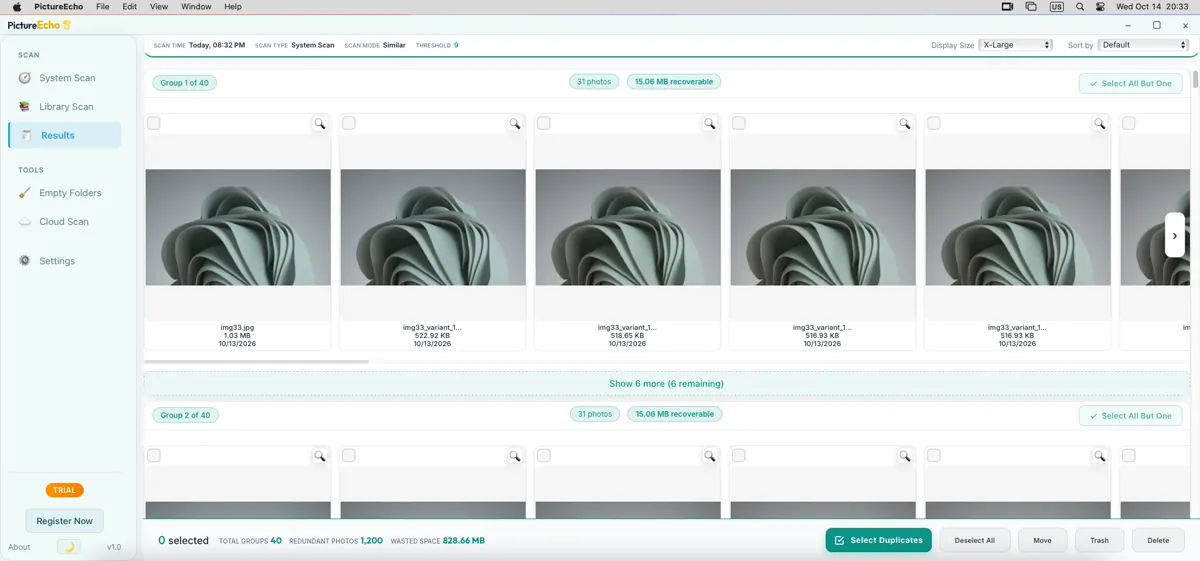
- Similar — Visual matches is the default. Use it for bursts, crops, filters, and smaller exports. Similarity Threshold runs from 1 (Strict) to 13 (Broad). The in-app default is 9 (Recommended). Higher values find more groups and can group photos that only share a sky.
- Exact is for copies the app treats as exact matches. Use it when you only want obvious file copies.
Run Similar at 9 on one folder first. Loosen the slider only if the groups look too thin.

3. Review, then Trash or Fix Duplicates
- Click Start Scan and wait for Results.
- Open a group and use Preview when two shots look close.
- Keep one. Select All But One, or Select Duplicates with a keep rule: Oldest, Newest, Largest, Highest Resolution, or Lowest Resolution.
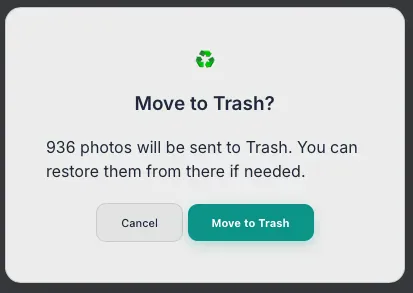
- On a folder scan, prefer Trash. The dialog says you can restore from Trash. Delete says the files are removed from disk and cannot be undone. Move puts the extras in a folder you choose.
- On a Photos library scan, Move, Trash, and Delete are hidden. Click Fix Duplicates. PictureEcho adds the selected photos to an album named Duplicates by PictureEcho. Then open that album in Photos, select the photos, and delete those photos. Do not delete the album. Deleting the photos removes them from the library and from the albums they came from. They follow Photos’ own Recently Deleted rules.
The trial cleans 10 groups, not 10 photos. A license is on the live register page. This article does not quote a price.
After a Lightroom library scan, if you moved or deleted files, use Lightroom’s Find Missing Photos so the catalog drops the old references.
What this scan leaves alone
- Video. Photos’ Duplicates collection can include videos. PictureEcho does not scan video.
- iCloud placeholders that are not downloaded. The app can note that those files were skipped. It does not download them.
- Google Photos in the browser. That is a different tool.
- The Photos library package itself. Fix Duplicates never tells you to delete that file in Finder.
If iCloud skipped your photos
That skip is expected. A photo that is still only in iCloud is not a local file yet.
In Photos or iCloud settings, download the originals to this Mac, then scan that library or folder again.
Copies that live in Google Drive or OneDrive are a browser job. PictureEcho Pro includes Cloud Duplicate Finder. That web app can find exact duplicates in those clouds, and similar photos on Google Drive and OneDrive. The Cloud Scan tab in PictureEcho opens that site. It does not read iCloud, and it does not scan the Photos library for you.
Exact duplicates vs similar photos
Exact copies are the same file for a practical cleanup. After you confirm which one to keep, they are the safer delete.
Similar photos are near-matches: a burst, a crop, a filter, a smaller export. Similar mode surfaces candidates. A broader slider finds more, including pairs you may want to keep. When you are unsure, leave the photo selected off.
Safety checklist before you delete
- Review similar groups. Do not empty Trash from a Broad scan you have not looked at.
- On a folder scan, prefer Trash. Empty Trash only after you have opened the photo you kept.
- On a Photos library scan, delete photos inside the Duplicates by PictureEcho album. Leave the album in place. Leave the library package in Finder alone.
- Keep the higher-resolution original when the pair differs.
- Start with one folder if the library is huge.
- Empty Folders can remove leftover empty directories after a folder cleanup. That delete cannot be undone.
- Videos and mixed documents are a file job, not this photo scan.
FAQ
Does the Mac have a built-in duplicate photo finder?
Photos does, for items already in the library. On macOS Ventura and later, Duplicates under Utilities lets you merge. Finder does not. Folders outside Photos, and similar shots Photos never listed, are outside that album.
Where is Duplicates in the Photos app?
Sidebar, under Utilities. If the row is hidden, hold the pointer over Utilities and show the items under it. Apple’s guide is the source for that path. A shared iCloud library needs Both Libraries in the toolbar Library menu before you merge.
Can Finder find duplicate photos?
It can sort and search. It cannot tell you that two different filenames are the same picture, or that a crop matches the original.
What is the safest way to remove duplicates from the Photos library?
Merge in Photos’ own Duplicates collection when the copies are already there, and recover from Recently Deleted if you merged the wrong row. For groups PictureEcho found inside that library, use Fix Duplicates, then delete the photos in the Duplicates by PictureEcho album. Do not delete the album, and do not delete the library file in Finder.
Why did PictureEcho skip my iCloud photos?
Those files are not on the disk yet. Download them, then scan again. Cloud Duplicate Finder does not scan iCloud Photos.
Can PictureEcho find similar photos, not just exact copies?
Yes. Similar mode groups visual matches. Exact mode is for copies the app treats as exact. The default threshold is 9.
Will the Photos Duplicates album work on every macOS PictureEcho supports?
Apple’s duplicate-merge guide covers macOS Ventura and later. PictureEcho’s download page also lists Monterey and Catalina and later for the app. On a Mac older than Ventura, use Finder and a folder scan. Do not expect the Photos Duplicates collection.
Is this the same steps as on Windows?
The scan idea is the same app. On Windows, extras from a folder scan go to the Recycle Bin. This Mac article uses Trash for folders and Fix Duplicates for the Photos library. The Windows how-to is Find and delete duplicate photos on Windows.
Clean the Mac without guessing
Photos is the first stop when the copies are already in the library. Finder is enough for a handful of obvious names. For bursts, exports, and folders Photos never imported, scan locally, keep one photo per group, and remove only what you have checked.
Open PictureEcho, add one folder or the Photos library, run Similar at the default threshold, and review before you Trash or Fix Duplicates.
Use the button below to go to pictureecho.com.