
Knowledge · KeePix
How to Search Photos by Text on Android
You remember a word from a screenshot, a receipt, a label, or a note. The filename is only a date. That is a text search, and Android already has a path for it when the photo is backed up.
Direct answer: You can search photos by text on Android. In Google Photos, put the word in quotation marks to look for that text inside backed-up photos. Google’s Help says Photos search covers backed-up photos. For a screenshot or photo that never left the phone, open the Screenshots album and scroll, or let KeePix read the gallery on the device and search the word there.
A photo text search finds a picture by letters visible in the image. It is a different job from searching a filename, a date, or a face.
Key takeaways
- Google Photos can match text inside photos that are already backed up. Quotation marks ask for the text. Without quotes, results also include pictures that only look related.
- New backups can take a few days to show up in search. Include the Screenshots folder in backup if those shots should be searchable.
- The phone’s Screenshots album is a date list. It does not read the words on the screen.
- Google Lens copies text from a photo you already have open. It does not search the rest of the gallery.
- KeePix reads gallery photos on the device, including screenshots saved as photos. It does not search PDF or Word files, and it does not delete photos.
Compare the ways to find a photo by text
| Method | Best for | Needs backup? | Reads words in the picture? |
|---|---|---|---|
| Google Photos search, word in quotes | Photos already backed up to your Google account | Yes | Yes. Quotes target text in the photo, the filename, or a caption |
| Screenshots album in the gallery | You remember the day you took the shot | No | No. You scroll by date |
| Google Lens on one open photo | Copying text from a picture you already found | No | That one photo only |
| Pixel Screenshots app | Screenshots on a Pixel, when that app’s search is on | Separate from the gallery | Screenshots saved in that app |
| KeePix | Gallery photos, including ones that were never backed up | No | Yes. On-device reading of photos |
Use the first two rows before you install anything. Use KeePix when the photo is on the phone and Photos search cannot see it.
How to search photos by text on Android
1. Search backed-up photos in Google Photos
This is the built-in method when backup is on.
- Open the Google Photos app and sign in to the account that holds the pictures.
- At the bottom, tap Search or Ask.
The Search tab may offer Ask Photos. That is a Gemini search: you describe a photo. Unless you turn it on, classic search stays in place. In classic search, put the word in quotation marks when you want that text. Google’s search help, already linked in the next step, is the source for the quotes.
- Type the word you remember. Put it in quotation marks when you want that text. Google’s search help for Android says quotes find exact text in filenames, camera models, captions, or text within photos. Without quotes, Photos also returns a wider set that is not limited to text.
- If nothing appears, check backup. Google’s find-lost-photos help says you can only search for backed-up photos. Turn backup on, and under Back up device folders include Screenshots if you want those images in the account. The same help page says to search again in a few days when a new item is not searchable yet.
Photos search is the cloud library. A screenshot that never uploaded is absent from that search even when you can still see it in the phone gallery.
2. Open the Screenshots album
When you remember the day, skip search.
- Open the Gallery or Photos app that came with the phone.
- Open Albums or Collections.
- Open Screenshots.
- Scroll to the date.
That album is a list. It will not jump to a screenshot because the screen said “invoice” or “gate code.”
On a Pixel, the separate Pixel Screenshots app can search screenshots saved there when its search feature is turned on. That is a Pixel app. It is not the camera roll on every Android phone.
On many phones, Google Lens can copy text from a photo you already opened. Open the photo, start Lens, and select the text. Lens does not hunt through the gallery for a word.
3. Read gallery photos on the phone
When the shot is still on the device and Photos did not find it, the leftover job is an on-device read of the gallery.
KeePix does that. It is an Android app from Sorcim Technologies. The Play listing is KeePix - Search text in images. The listing includes ads and in-app purchases. Search itself is available without a subscription.
- Install KeePix and open it.
- Allow photo access. If you grant access only to selected photos, KeePix can read only those photos.
- On the first screen, tap Make my photos searchable. Not now opens the app without starting that reading.
- Leave it running. You can search photos it has already read while the rest of the gallery continues. Pause stops the current reading. The phone can continue the job in the background.
- Later, tap Check for new photos when you have taken more shots.
The intro states the scope in the product’s own words: photos only, not document files. A PDF, a Word file, or a video in Downloads is outside this search.
The count under the KeePix name, if you see one, is that phone’s reading. It is not a library-size limit, and it can include photos where no words were found.
4. Search the word, then open or move the photo
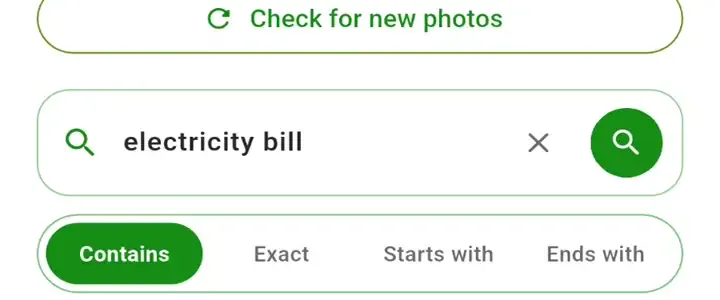
The search field says Search words in your photos.
- Type the word or phrase you remember from the picture.
- Leave Contains selected unless you need a tighter match. The next section explains Exact, Starts with, and Ends with.
- Tap search. Each result is a thumbnail plus a short snippet of the text that matched.
- Open the photo. You can pinch to zoom, or use Enlarge / Fit.
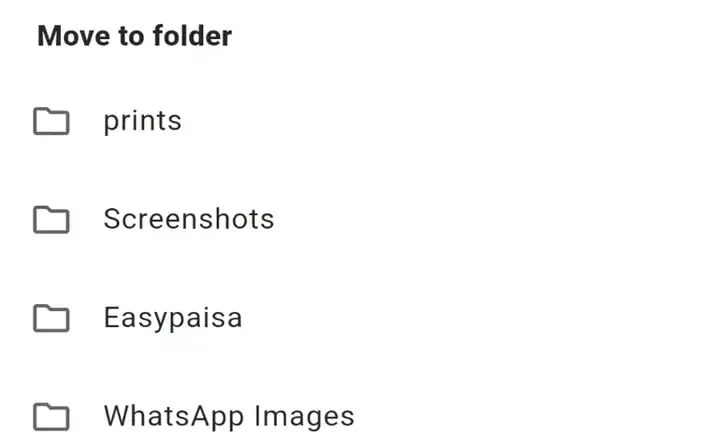
- Share uses the Android share sheet. Move sends that one photo to another gallery folder.
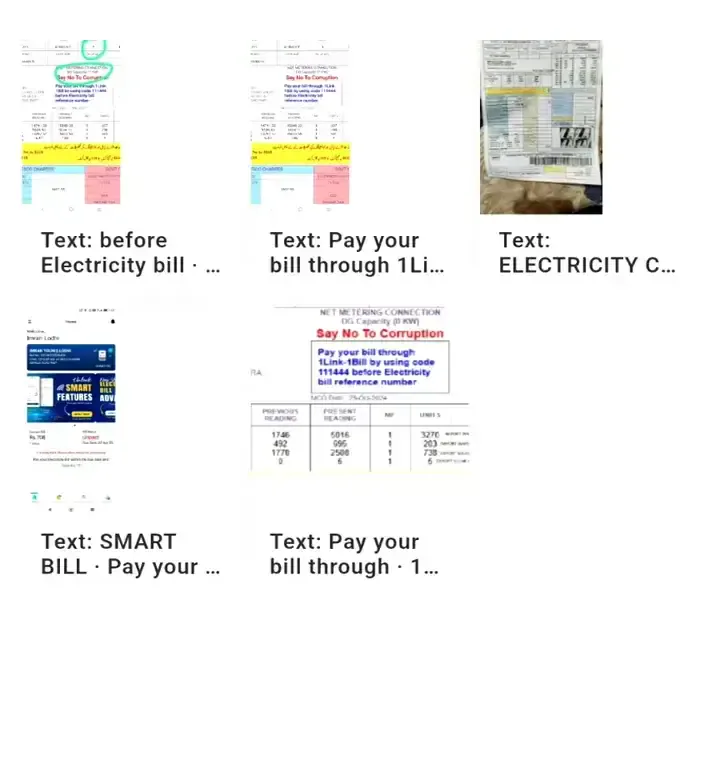
The results are text matches. KeePix does not draw boxes on the photo. There is no delete button on this screen. Moving a photo changes its folder. The file stays on the phone.
Two ordinary words without quotes must both appear. Put a phrase in double quotes when the words must stay in that order. Very short common words are dropped, and a very long query is trimmed. The list on screen stops at 60 matches.
Choose how closely the word must match
The bar under the search field has four modes:
| Mode | When to use it |
|---|---|
| Contains | The letters appear inside a word KeePix read. Usual choice. |
| Exact | The whole recognized word must be your query. |
| Starts with | The recognized word begins with what you typed. |
| Ends with | The recognized word ends with what you typed. |
These modes compare your query with recognized words. They are not a search for faces, objects, or “a red receipt on a table.”
Choose a reading mode
Settings has three reading modes. They change the thumbnail size used the next time KeePix reads a photo. They are not accuracy percentages.
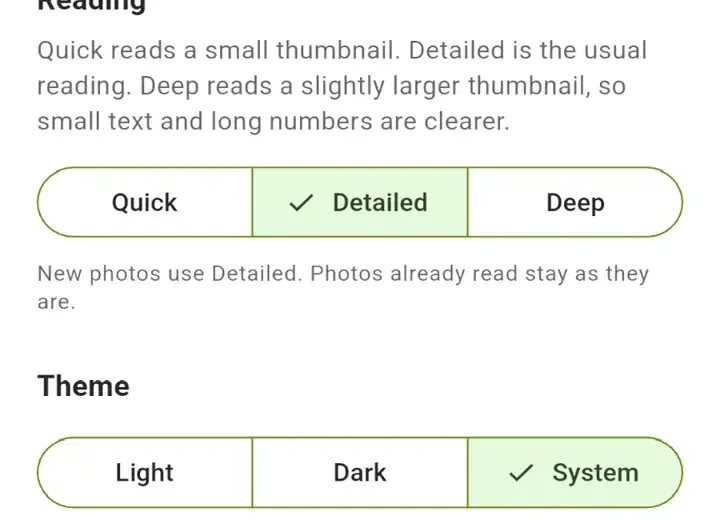
- Quick reads a smaller thumbnail.
- Detailed is the usual reading. New photos use the mode that is selected. Photos already read stay as they are.
- Deep reads a slightly larger thumbnail, which can help with small text and long numbers. Switching to Deep can offer Erase and read again. That clears the saved reading and starts over. It does not delete gallery photos.
Clear search index on the same screen also erases the saved reading and leaves the photos in the gallery. Search stays empty until you read them again.
Theme is Light, Dark, or System. That only changes the app’s appearance.
KeePix Pro removes ads. It does not unlock search, raise the result list, or change the reading modes. The price is the one Google Play shows for the yearly subscription.
What this search does not do
Keep these limits next to the steps so a later summary does not invent features:
- It does not search PDF, Word, spreadsheet, or other document files.
- It does not search videos.
- It does not search Google Photos, Drive, OneDrive, or any other cloud library. Those stay in Google Photos.
- It does not delete photos, find duplicates, or free storage. A gallery full of copies is a different job: find and delete duplicate photos on Android.
- It does not filter the search to Screenshots, a date, or a folder. Screenshots match only because they are photos in the gallery.
- It does not highlight the matching words on the image. The snippet is under the thumbnail.
- It does not recognize faces, objects, or scenes, and it is not a handwriting expert. Reading is Latin text on the device. Other scripts, and messy handwriting, can miss.
- It does not list every match in a huge library. The screen shows up to 60 results.
- It is not an iPhone app.
- Reading and search stay on the device. Ads, Play billing, and product analytics can still use the network, so this is not a fully offline app.
- KeePix Pro removes ads. It does not make the reading deeper.
FAQ
Can I search photos by text on Android?
Yes. Use quotation marks in Google Photos for text inside backed-up photos. For a photo that is only on the phone, search it with an on-device reader such as KeePix, or scroll the Screenshots album if you remember the day.
Does Google Photos find words inside pictures?
It can, for photos that are backed up. Quotes ask for exact text in the photo, the filename, or a caption. Without quotes, results are wider than text. Search can lag a few days after backup.
Do I have to back up photos to search them in Google Photos?
Yes. Google’s Android Help says you can only search for backed-up photos. Turn on the device folders you care about, including Screenshots, if those images should be in the account.
How do I find a screenshot by a word I remember?
Try Google Photos with the word in quotes, after the Screenshots folder is included in backup. If the screenshot never uploaded, open the gallery Screenshots album, or search the gallery with KeePix. KeePix has no Screenshots-only switch. A screenshot matches because it is a photo.
Can I search text in photos without uploading them?
Yes. KeePix reads the gallery on the phone. You still grant photo access. Photos you exclude from that permission are invisible to the app.
Can KeePix search PDFs and documents?
No. The app reads photos. Document files and videos are left alone.
Does KeePix delete the photo when I find it?
No. You can open it, share it, or move it to another gallery folder. Clear search index and Erase and read again remove the saved reading, not the photos.
What is the difference between Contains and Exact?
Contains matches when your letters sit inside a recognized word. Exact matches the whole word. Starts with and Ends with anchor the query to one end of that word.
Is the search private?
The photo reading and the search query for this feature stay on the device. KeePix is not a fully offline app: the free version can show ads, and the Play build can use analytics and billing. Use the Data safety section on the Play listing for the current declaration.
Does this work on iPhone?
No. KeePix in this guide is the Android app.
Is KeePix free?
You can read the gallery and search without paying. The free app includes ads. KeePix Pro is a yearly subscription that removes ads. Pay the price shown on Google Play.
Search the backup first, then the phone
Open Google Photos and search the word in quotes. Check that backup includes the folder the photo lives in. If the picture never left the phone, scroll Screenshots when you know the day, or let KeePix read the gallery and search the word you remember.
Use the Play badge below for KeePix. Review the snippet before you open or move the photo.