
Knowledge · Cloud Duplicate Finder
How to Find and Delete Duplicate Photos in Google Photos
Google Photos fills the same way a phone camera roll does. Bursts, WhatsApp saves, “download again” copies, and the same trip uploaded from two devices all land in one library — and they all count against the Google account storage that Photos shares with Drive and Gmail.
A Google Photos duplicate finder is a workflow or tool that groups identical or near-identical items in your Photos library so you can keep one and move the rest to Trash.
Direct answer: Google Photos does not include a library-wide automatic duplicate finder. What it does offer is photo stacks in the mobile app: similar shots taken close together, grouped so you can keep one. Stacks do not free storage until you Trash items, and they are not available on the website. They also will not scan an old album for copies uploaded years apart.
For a larger cleanup on the web, Delete Duplicates from Google Photos — CDF is a Chrome extension that scans the Photos view you have open, groups near-matches, helps select extras, and leaves the final Trash action to you.
Key takeaways
- There is no Google Photos setting that “finds all duplicate photos” across the whole library.
- Stacks help recent similar shots in the app. They do not change storage by themselves.
- Files by Google cleans phone files. It is not a Google Photos cloud cleaner.
- Google Photos ≠ Google Drive. Photos is the library at photos.google.com. Drive is folders and files at drive.google.com.
- A Chrome extension can scan an album or filtered Photos view on the website. You still click Trash in Google Photos.
- The extension is part of Cloud Duplicate Finder. CDF’s web app is a Google Drive duplicate finder — a different job (link in the Drive section below).
Why duplicate photos show up in Google Photos
Copies are rarely one “Duplicates” album. Common sources:
- Burst / multi-shot camera modes (five near-identical frames).
- The same weekend uploaded from a phone and a camera card.
- WhatsApp or chat saves that also exist as Camera originals (once both are backed up).
- Saving the same image from email or the browser a second time.
- Edits kept next to the original (crop, filter, “Save a copy”).
- Partner sharing or shared albums that pull in a photo you already have.
Exact copies waste quota with no visual benefit. Similar photos waste quota and make Memories and search noisier. Treat them as two jobs.
Compare methods
| Method | Best for | Finds similar / burst shots? | Where it runs |
|---|---|---|---|
| Google Photos stacks | Recent near-identical shots taken close together | Limited (time + similarity) | Photos app only |
| Manual browse on the website | A handful of obvious copies you already see | No — you are the comparison engine | photos.google.com |
| Files by Google → Duplicate files | Exact files on the phone | No | Android device storage |
| Chrome extension (focused scan) | Cleaning an album or filtered view in the Photos website | Adjustable near-matches; 80% default | Chrome + photos.google.com |
Use stacks first if the mess is last week’s bursts. Use the website + extension when you need to review an album that stacks never touched.
Method 1: Google Photos stacks (app)
This is Google’s official path. It is documented in the Photos Help page linked above (Organize your Photos view).
What a stack is. Photos can group similar photos — nearly identical shots of the same subject taken together in a short time — and show a Top pick. You open the stack and decide what to keep.
What a stack is not. Google states that stacking does not change available storage. Space comes back only after you move extras to Trash (and after Trash is emptied or expires). Stacks are app-only. They need backup turned on, and they apply to backed-up photos. They will not walk an entire 2018 album looking for a re-upload from 2025.
Turn stacks on (Android)
- Open the Google Photos app.
- Tap More.
- Turn on Stack similar photos.
- If stacks do not appear yet: confirm backup is on, then wait. Google says recently taken photos can take time to stack.
Keep one photo and delete the rest
- Tap a stack in your Photos view.
- Scroll the filmstrip to the photo you want to keep.
- Open the thumbnail menu and tap Keep this, delete rest.
- Tap Move to trash.
You can also multi-select individual frames in the stack and Trash only those.
Limits
- Website library: no stacks.
- Old copies with different dates often will not stack.
- Hiding clutter from other apps is a view change. It does not delete duplicates.
Method 2: Browse and Trash on photos.google.com
Use this when you already know the copies.
- Open Google Photos on a computer.
- Open the album or date range that looks duplicated.
- Select the extras.
- Move them to Trash.
- Restore from Trash if you picked the wrong one — Google’s restore help currently says photos and videos are permanently deleted after 30 days, unless you empty Trash sooner.
This does not search the library for you. It is fine for ten obvious copies. It fails at a thousand.
Method 3: Scan a focused view with the CDF Chrome extension
A dedicated Google Photos duplicate finder in the browser reads the album, search, or Photos view you have open, groups near-matches, and lets you choose keepers. It selects the approved extras in the Photos grid, but the final delete action still happens when you click Trash in Google Photos.
That is the job of Delete Duplicates from Google Photos — CDF — a Chrome extension from Sorcim’s Cloud Duplicate Finder line.
Choose it when you want to:
- Work inside Google Photos in Chrome (no Takeout download, no desktop sync of the library)
- Scan a focused album or search result instead of trying to process everything at once
- Review grouped photos or videos; videos are compared through their poster/thumbnail, not frame by frame
- Adjust similarity from 50% to 100%; the default is 80%
- Choose Keep Best, Keep Newest, Keep Oldest, Keep Low Resolution, or Keep High Resolution
- Stay in control: you click Trash in Photos
- Keep photo comparison in the browser — source shows local thumbnail hashing rather than photo upload to a CDF scan server
What the current extension does
- Runs on the Google Photos dashboard in the browser.
- Uses an adjustable 50–100% Similarity Threshold, set to 80% by default.
- Scans the current rendered Photos view and shows an in-page Duplicate Sets Found review screen.
- Offers five selection strategies plus set-level and individual Delete checkboxes.
- The free trial processes selections from up to 5 sets in one trial run.
- Active Cloud Duplicate Finder subscribers can enter their email and use Apply Subscription to unlock selection beyond five sets. Verify current entitlement and pricing on the live product before purchase.
- Applying a subscription sends the entered email to CDF for a status check; scan results and trial state are stored in the browser extension.
- After the extension selects approved extras in the Photos grid, you click Trash / Move to trash in Google Photos.
This is a browser-page workflow, not an official Google Photos library API crawl. Because it depends on rendered tiles and recognizable metadata, use focused scans and do not treat any result count as a guarantee that every library item was read.
How to delete duplicate photos in Google Photos with the extension
Follow this sequence. Always review a set before you Trash it. Counts and sizes in the screenshots are one library, not a typical result.
1. Install the extension from the Chrome Web Store
- Open the Delete Duplicates from Google Photos — CDF listing in Chrome.
- Add the extension.
- Sign in to the Google account whose Photos library you want to clean.
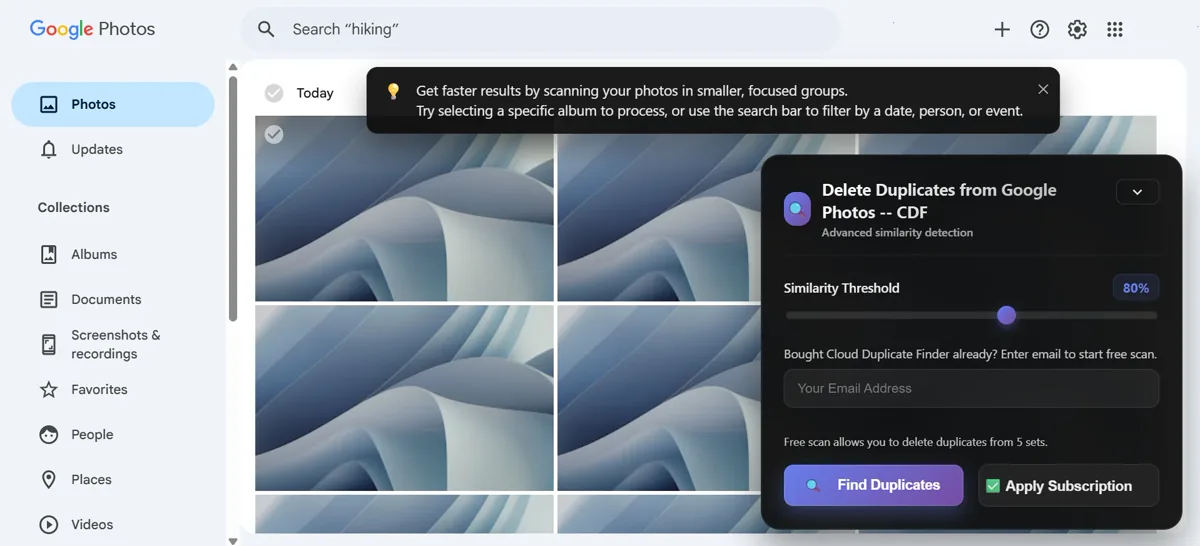
2. Open a focused view, then scan
- Go to photos.google.com.
- Open the album you want to clean first, or filter Photos by a date, person, or event.
- In the extension panel, leave Similarity Threshold at 80% for a first pass or adjust it between 50% and 100%.
- Click Find Duplicates and wait for Duplicate Sets Found.
3. Review sets, not just the count
- Open a set and look at the frames side by side.
- Choose a strategy such as Keep Best or Keep High Resolution, then inspect what it marked for deletion.
- Change individual Delete checkboxes when the suggested keeper is not the one you want.
- Skip a set if the photos are only the same scene, not copies or near-copies.
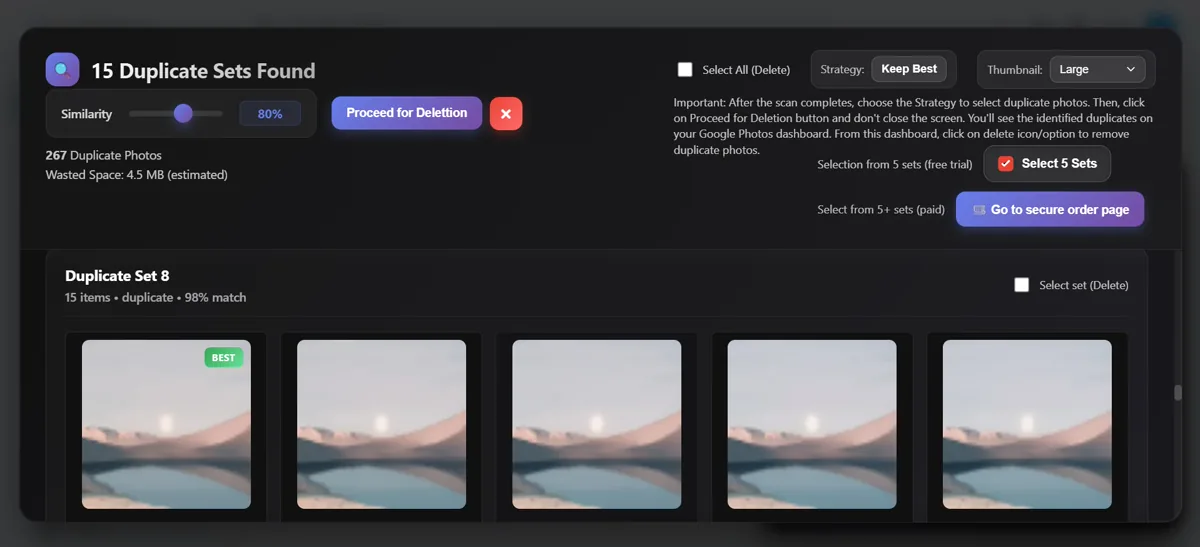
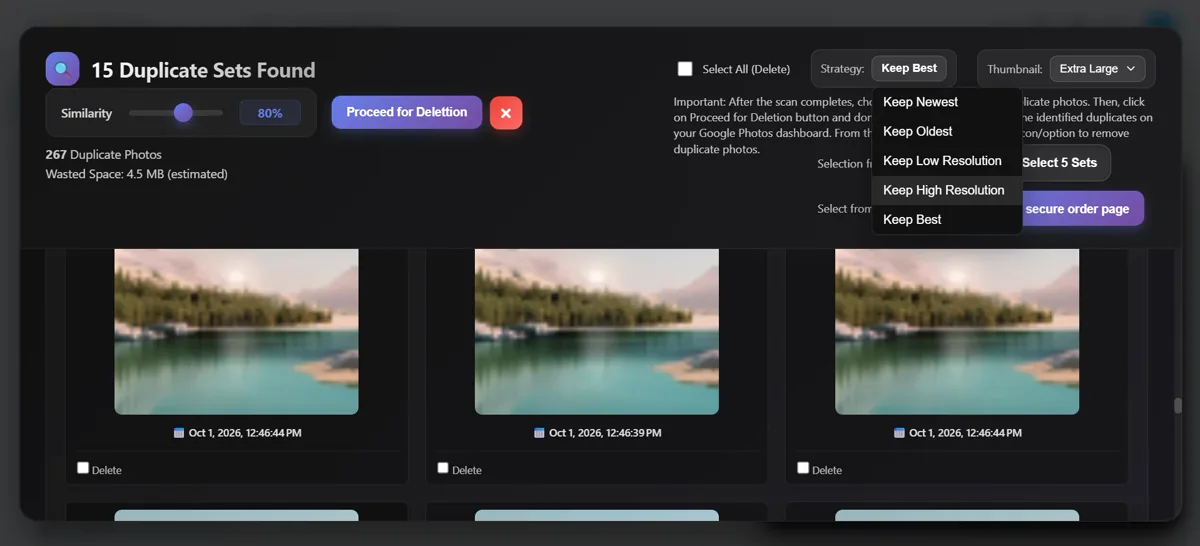
Lower similarity settings can widen the candidate pool. Whatever percentage you choose, you are the last check.
4. Trash extras in Google Photos
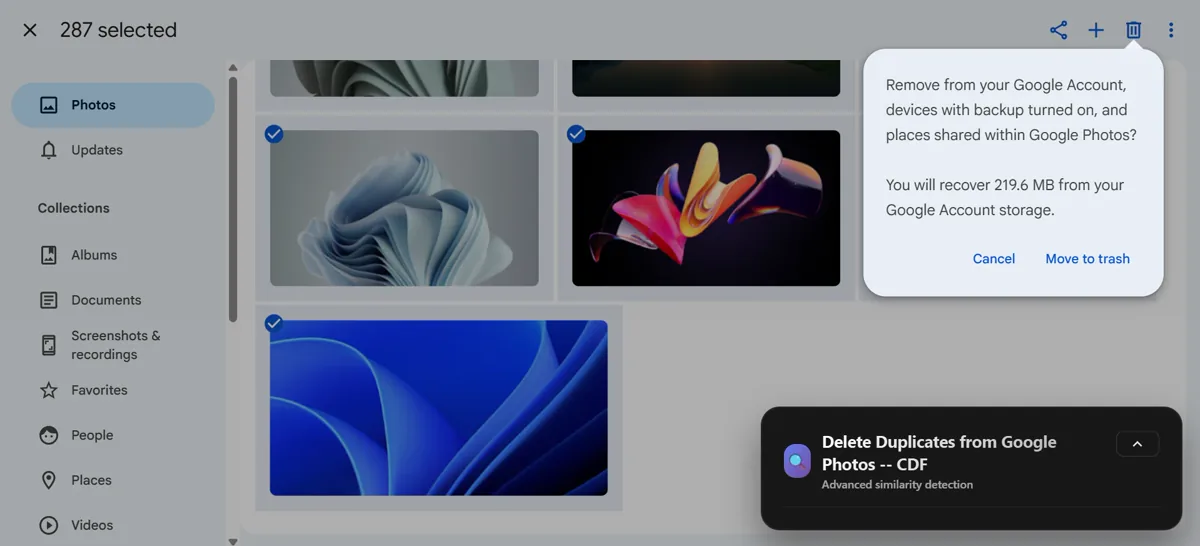
- When the reviewed Delete selections are correct, click Proceed for Deletion.
- Keep the page open while the extension scrolls the Photos grid and selects those items.
- Check the selected count, then use Google Photos Trash / Move to trash.
- Open Trash and confirm the keeper is still in the library.
- Empty Trash only when you are sure. Until then, restore from Trash if you made a mistake.
5. Understand the trial before scanning
The free trial lets you select extras from up to 5 duplicate sets in one trial run. Proceeding marks that trial as used in the browser. Start with a focused album that matters, not a test view you do not intend to clean.
If you already have an active Cloud Duplicate Finder subscription, enter that account email and choose Apply Subscription. The current source enables selection beyond five sets after the subscription check succeeds.
What this is not (do not mix the buckets)
| Job | Tool |
|---|---|
| Duplicates in Google Photos (this article) | Stacks in the app, or the CDF Chrome extension on the website |
| Duplicate files in Google Drive | Cloud Duplicate Finder’s web Drive scan — not the Photos extension |
| Duplicate photos on the Android phone | Files by Google, Samsung Gallery, or PictureEcho for Android |
| Photos sitting only on a Windows PC | PictureEcho desktop — not this extension |
Do not treat these as the same product
- This Chrome extension does not scan Google Drive, OneDrive, or a Pictures folder.
- Cloud Duplicate Finder’s Drive scanner does not scan the Google Photos library.
- Files by Google finding duplicate files on the phone is not “Google Photos deleted my cloud copies.”
- Stacks are not a website-wide exact-hash finder.
- The extension’s 80% value is a default, not a fixed match level; its slider runs from 50% to 100%.
- This is not an official Google Photos API crawler or an exhaustive scan guarantee.
- The extension does not claim to auto-empty Trash or permanently delete without you.
Same product family: Cloud Duplicate Finder for Google Drive
The Photos extension is part of Cloud Duplicate Finder. Same company, different surface.
If the copies are files in Drive — Copy of PDFs, (1) zips, the same photo uploaded into a Drive folder — that is the web app: Google Drive duplicate file finder. Connect Drive in the browser, scan online, review matches, then Trash or move. Step-by-step: How to find and remove duplicate files in Google Drive.
Use both only when you have both messes. Cleaning Photos does not dedupe Drive. Cleaning Drive does not dedupe Photos. They share one Google storage quota, which is why people confuse them.
Safety checklist before you Trash
- Review every set; a similarity percentage is a candidate threshold, not proof that two items are disposable copies.
- Prefer Trash over permanent delete. Restore while the item is still there (same Google Photos restore Help as above).
- Keep at least one clear master in each set (highest resolution when they differ).
- Start with one album, not the whole library.
- Remember: stacking in the app does not free storage by itself.
- Remember: Free up space on this device in the Photos app removes local backed-up files. It does not find cloud duplicates.
FAQ
Does Google Photos have a built-in duplicate finder?
No library-wide automatic one. The closest built-in tool is photo stacks in the mobile app for similar shots taken close together. That is not a full-library scan, and it is not on the website.
Does Google Photos delete duplicates automatically?
No. Stacks group some similar shots. Keep this, delete rest is manual. Photos will not treat every edited or re-uploaded copy as a duplicate and remove it for you.
Do photo stacks free up storage?
No. Google Help says stacking does not change available storage. You free space by moving extras to Trash (then waiting for Trash to empty, or emptying it yourself).
Are photo stacks available on the Google Photos website?
No. Google Help says photo stacks are only available in the Google Photos app.
Is Files by Google the same as cleaning Google Photos?
No. Files by Google can find exact duplicate files on the phone. That is device storage. It is not a scan of your Photos cloud library.
What is the safest way to delete duplicate photos in Google Photos?
Preview the set, keep one master, move extras to Trash, confirm the keeper is still in the library, and empty Trash only after you have checked.
Does the CDF Chrome extension delete photos for me?
Not completely. It finds candidates, applies your selection choices, and selects approved extras in the Google Photos grid. You still click Google Photos Trash / Move to trash.
How many duplicate sets can I review in the free trial?
The free trial lets you select extras from up to 5 duplicate sets in one trial run. The current source marks the trial used after you proceed. Check the live Store page for current terms.
Can I change the match percentage?
Yes. 80% is the default, and the current extension source provides a 50–100% similarity slider.
Will this clean Google Drive too?
No. This extension is Google Photos only. For Drive files, use Cloud Duplicate Finder’s web Drive scan — same family, different surface. See the Drive section above.
Will deleting Photos duplicates free space on my phone?
Only if you also remove the device copy. Cloud quota drops when the item leaves the Google account (after Trash is gone). Phone storage is a separate bucket — see the Android duplicate-photo guide above.
Clean the library without guessing
Stacks are the right first pass for recent bursts in the app. The website will not stack for you. For an album full of older copies, scan in Chrome, review the set, and Trash only what you have checked.
Install the extension, open a focused album or filtered view on photos.google.com, review each suggested selection, and confirm the final Trash action yourself. Use the button below for the Chrome Web Store listing.