
Knowledge · Easy File Renamer
How to Batch Rename Files in Windows (Without the (1) Mess)
Camera dumps named IMG_4721. Downloads called Document (2).pdf. A folder of exports with spaces, underscores, and leftover “final_FINAL.” Renaming those one by one is the job nobody finishes.
Batch rename means applying one naming plan to many files at once — a shared prefix, a find-and-replace, a number sequence — instead of pressing F2 a hundred times.
Direct answer: On Windows 11 you can rename multiple files at once in File Explorer. Select the files, press F2, type a base name, press Enter. Explorer gives every file that name plus a number in parentheses: Vacation (1).jpg, Vacation (2).jpg. That is enough for a small set in one folder. It is a poor pattern if you need find-and-replace, title case, folders as well as files, or numbers without the brackets.
For search-and-replace with a preview, Microsoft’s free PowerRename (part of PowerToys) is the next built-in-adjacent step. When you want stacked rules, folder-name batches, music tags, or photo names from the date the camera stored, Easy File Renamer is built for that.
Key takeaways
- Explorer’s multi-file rename is real — and it almost always produces
(1),(2). - PowerRename is the Microsoft option for find/replace, regex, and preview (and it can undo).
- PowerShell can do anything; it is not the everyday path.
- Easy File Renamer is a Windows (and Mac) app: add files or folders, stack named rules, preview, then apply. Work stays on the PC.
- Photos can be renamed from the date and camera info stored in the file (Media Renamer). That is not the same as Explorer’s
(1)trick. - Files that live only in Google Drive are a different product (Cloud File Renamer on the web). This page is local Windows files.
Why filenames get messy on Windows
- Phone photos land as
IMG_orDSC_. - Browsers and chat apps add
(1)when a name already exists. - Exports keep editor suffixes (
-edited,_export). - “Copy of” and
final2survive every project. - Music tracks often have the filename out of sync with the tags.
A rename does not change the picture or the song inside. It only changes the name. Still preview: a bad pattern on 4,000 files is painful to reverse if you do not have a backup.
Compare methods
| Method | Best for | Preview? | Typical limit |
|---|---|---|---|
| File Explorer (select + F2) | A few files, one shared name | No real new-name list | (1) style numbers; one pattern |
| PowerRename (PowerToys) | Find/replace, regex, dates | Yes | Windows-only; you install PowerToys |
PowerShell Rename-Item | Scripted, repeatable jobs | If you write -WhatIf | You must be comfortable in a terminal |
| Dedicated batch renamer | Many rules, folders, everyday preview | Yes (in EFR) | You install an app |
Start with Explorer. Move on when the parentheses, or a single replace, are not enough.
Method 1: Batch rename in File Explorer
This is the built-in path. It works in Windows 10 and Windows 11.
- Open the folder in File Explorer.
- Sort the files the way you want the numbers to run (name or date). Explorer follows the current order.
- Select the group (Ctrl+click, Shift+click, or Ctrl+A).
- Press F2, or right-click → Rename.
- Type the shared base name (for example
Beach-2026). - Press Enter.
You should get Beach-2026 (1), Beach-2026 (2), and so on. Ctrl+Z undoes a rename in Explorer if you catch it immediately.
Limits
- You cannot say “replace
_with-on these 800 files” in one clean rule. - You cannot stack “remove Copy of, then add a prefix, then title case.”
- Folder names are a separate, slower job.
- The
(1)style is hard to sort next toBeach-2026-01later.
If that is all you needed, stop here. No extra software.
Method 2: PowerRename in Microsoft PowerToys
PowerRename is Microsoft’s bulk rename utility. It is not in Windows by default; it ships with PowerToys.
What Microsoft documents it for:
- Search and replace in a selected set
- Regular expressions
- A preview of old → new names
- Undo after you apply
- Optional counters, file-date tokens, and (for photos) EXIF/XMP fields
Typical flow:
- Install PowerToys and enable PowerRename.
- Select files in Explorer.
- Right-click → Rename with PowerRename (on Windows 11 it may sit under Show more options).
- Enter Search for / Replace with. Watch the preview.
- Apply. Use Explorer Undo Rename (Ctrl+Z) if you need to reverse the last change, as Microsoft describes.
When this is enough: one find/replace, a regex you already understand, or numbering without installing a separate renamer.
When it is more than you want: you do not want PowerToys, you need several named rules in a row, you also want to rename folders in the same habit, or you care about MP3 / iTunes tags as the source of the name.
Method 3: PowerShell (only if you already use it)
PowerShell’s Rename-Item can pad numbers, filter by extension, and run -WhatIf first. It is the right tool for people who already script Windows. It is the wrong first recommendation for a Downloads folder of family photos. If a command goes wrong, you are renaming on disk. Skip this method unless you are comfortable testing on a copy of the folder.
Method 4: A dedicated batch file renamer
A batch file renamer is an app you add files or folders to, attach one or more rules, preview the new names, and apply. That is the model Easy File Renamer uses on Windows and Mac.
Recommended option: Easy File Renamer
Choose it when you want to:
- Apply several rules to the same list (replace, then prefix, then numbers)
- Rename files or folder names (one mode at a time)
- See the new names and approve before anything changes
- Rename photos from the date the camera stored (Media Renamer)
- Tidy music names from tags (Music Fixer)
- Keep the work on the PC
What this desktop app does
Four tabs:
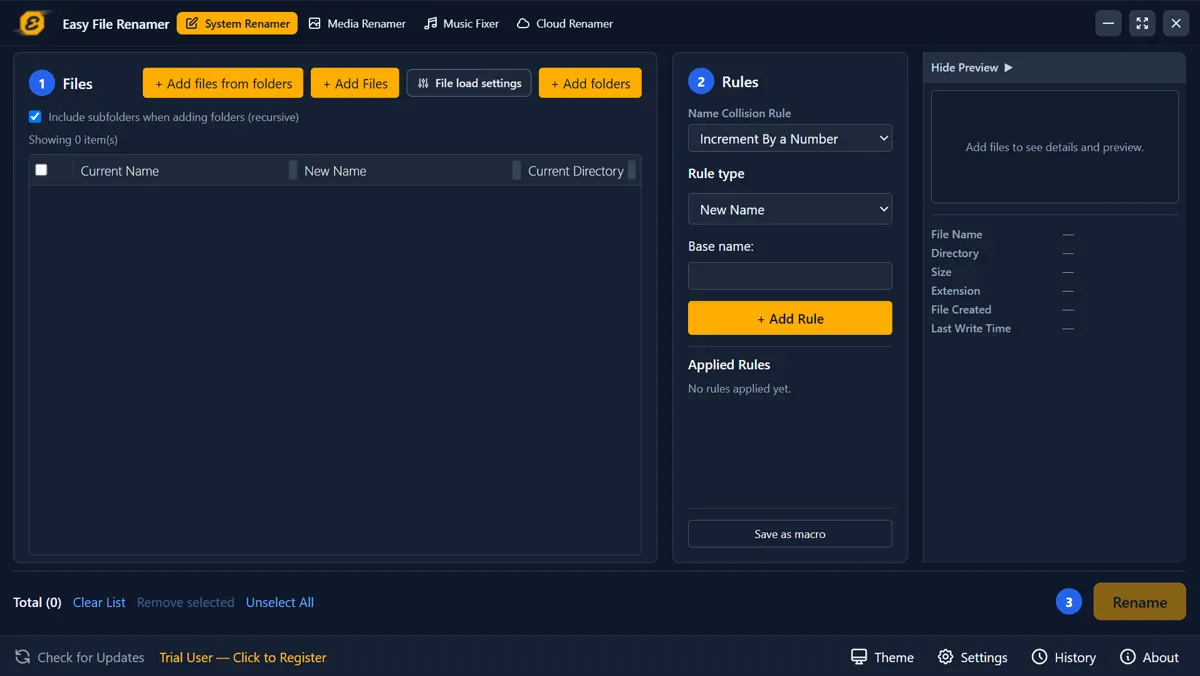
- System Renamer — everyday files. Stack rules such as New Name, Replace Text, Remove Text, prefix/suffix, ascending numbers, insert, trim, upper / lower / title case, and change extension. You can save a rule set as a macro.
- Media Renamer — photos and/or videos. You type a name pattern that can include the date the photo was taken, the camera, and the picture size. That data is already inside many JPEGs (EXIF). If a video has no “date taken,” the app can use the file’s modified time instead.
- Music Fixer — read and write common tags, optional album art, rename from artist/title/album, and load tracks from an iTunes library export (File → Library → Export Library, then pick the
.xml). - Cloud Renamer — opens the Cloud File Renamer website. It does not connect Drive inside this Windows app.
You get a new-name column before anything is written. If two files would share a name, the app can add a number or skip the file.
Unregistered (trial) builds can add files and preview. Applying the rename asks you to unlock the full product. We will not invent prices here. Check the live site.
A History list records batches. That is a log. It is not Explorer’s Ctrl+Z.
How to batch rename files with Easy File Renamer
Work on a copy of an important folder the first time you try any bulk rename.
1. Open Easy File Renamer
- Get the Windows build from the Easy File Renamer website.
- Install and open the app.
- Stay on System Renamer for PDFs, Documents, and mixed Downloads. Use Media Renamer for a camera roll. Use Music Fixer for a music folder.
2. Add the files or the folders
- Add files, or add files from a folder (you can include subfolders).
- To rename folder names, use Add folders — that is a separate list. You cannot mix files and folders in one pass.
- Check that you have only the set you mean to change. If you added more than about 1,500 files as a flat list, switch to the folder/index path so the full set can be renamed, not only the first page.
3. Add rules, then read the preview
- On System Renamer, pick a rule that matches the mess: Replace Text for
_→-, Remove Text forCopy of, Add Prefix for an event name, Add Ascending Numbers if you want a sequence, Title Case if the words are already right. - Add a second rule if needed. Order matters.
- On Media Renamer, use a pattern such as event name plus the photo’s date taken — then read the new-name column.
- Fix the rules until the sample rows look right.
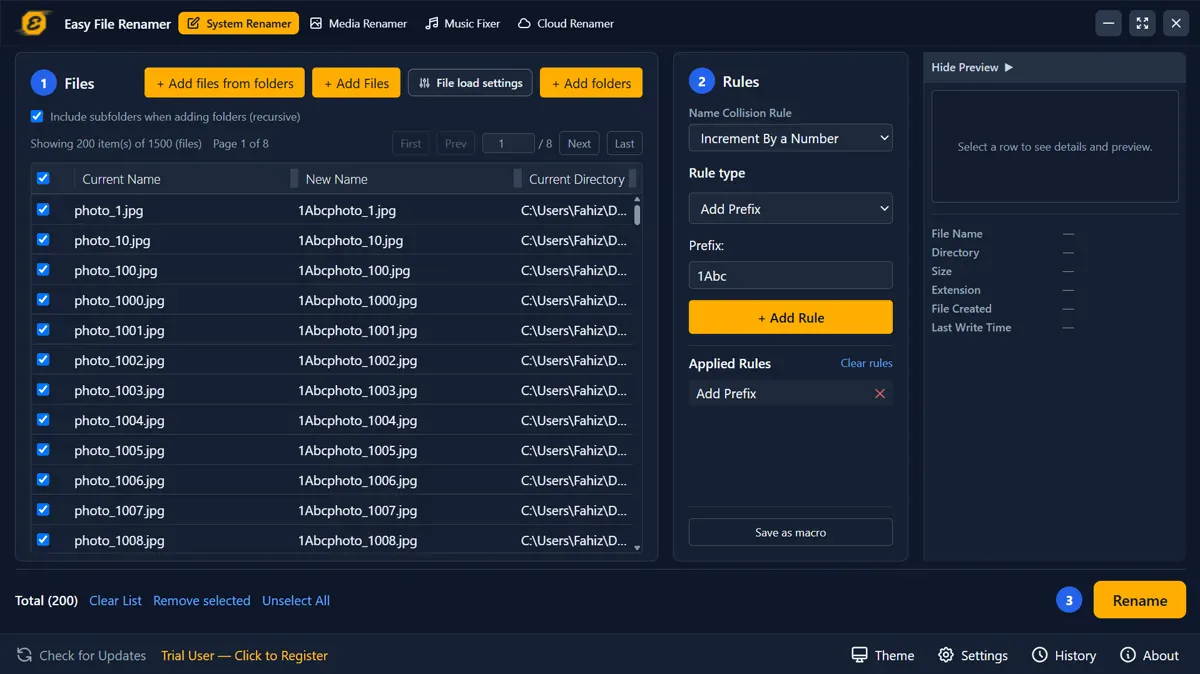
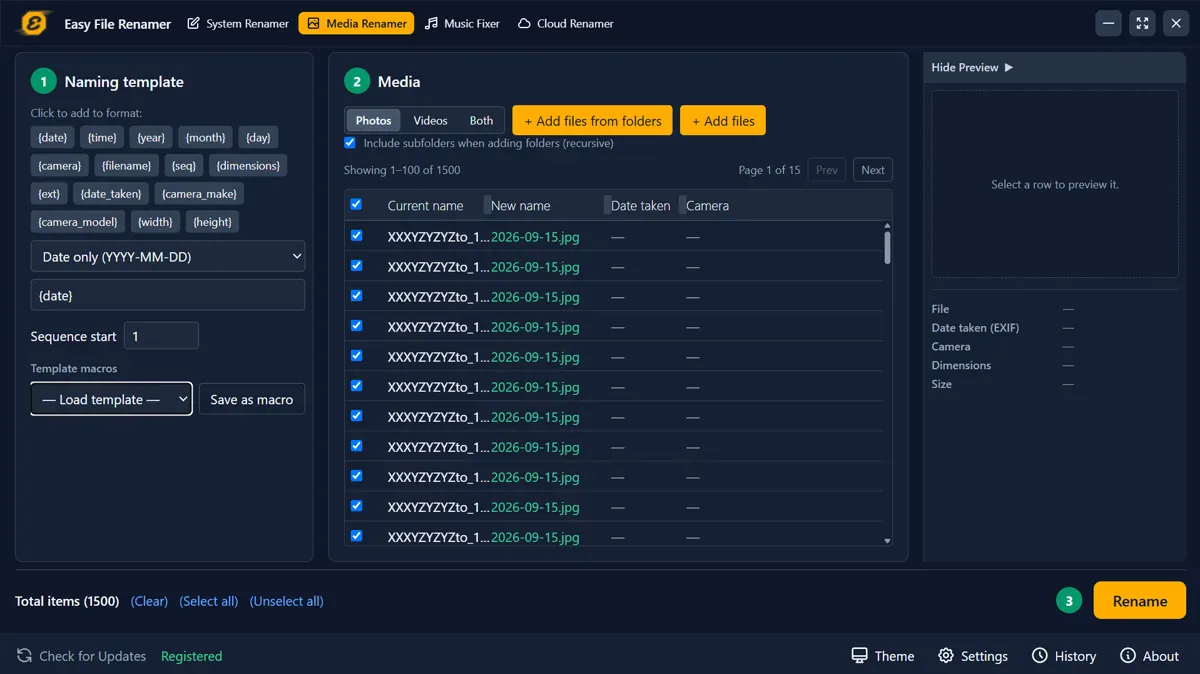
4. Apply only when the preview is honest
- Rename, then confirm the prompt.

- Open Explorer and spot-check a few files (and that the extension is still
.jpg/.pdfunless you meant to change it). - If you use Music Fixer, treat tag edits and filename patterns as two checks — a wrong tag written in bulk is as bad as a wrong name.
Safety checklist
- Preview. Do not apply a rule you have not seen on real rows.
- Test on a copy or a small subfolder first.
- Keep extensions unless the job is “change extension.”
- Explorer and PowerRename can Ctrl+Z a last rename. Easy File Renamer keeps a history log; do not assume Ctrl+Z.
- Do not run a first experiment on the only copy of a client delivery.
FAQ
Can Windows batch-rename files without extra software?
Yes. Select the files in File Explorer, press F2, type a base name, press Enter. Explorer adds sequential numbers in parentheses.
Why does Windows add (1) and (2) to the names?
That is how Explorer keeps each name unique when they share a base. It is not a find-and-replace tool.
Do the files have to be in the same folder?
Yes for Explorer. Select the files in one folder, and the numbers follow that folder’s current sort. PowerRename uses the files you selected. A folder plus its subfolders is a separate pass in a dedicated renamer.
What is the difference between File Explorer and PowerRename?
Explorer applies one shared name plus numbers. PowerRename is Microsoft’s search/replace (and regex) tool with a preview and undo, via PowerToys.
Do I need PowerShell to batch rename files?
No. Use it only if you already write scripts. Explorer, PowerRename, or a dedicated renamer cover normal folders.
Can Easy File Renamer rename folders as well as files?
Yes. Use Add folders when the job is folder names. Use Add files when the job is the files inside. Not both in one list.
Can I see the new names before they change?
Yes. Easy File Renamer shows a preview column. You apply only after that looks right. PowerRename also previews. Explorer does not show a full new-name list.
Can I name photos from the date they were taken?
Yes, in Media Renamer. Many photos store “date taken” and camera info inside the file. The app can put that into the new name. PowerRename can also use photo metadata. Explorer’s F2 rename cannot.
Does Easy File Renamer upload my files?
Local rename stays on the computer. The Cloud Renamer tab only opens the Cloud File Renamer website. It does not upload your Pictures folder from this app.
Can I rename files on Google Drive from this workflow?
Not with Explorer on a file you never synced, and not inside Easy File Renamer’s desktop tabs. Cloud File Renamer is the web product for Drive and other clouds. This page is about files already on Windows.
Is Easy File Renamer Windows-only?
No. There is a Mac edition. This article focuses on Windows because that is the larger how-to cluster. Finder has its own built-in batch rename if you are on a Mac and the job is simple.
Will this work on Windows 11 and Windows 10?
Explorer’s multi-select F2 behavior and PowerRename both apply on current Windows 10/11 PCs. Check the live Easy File Renamer download page for the OS list.
Rename the folder, then stop
Explorer is fine for ten files and a shared name. PowerRename is the Microsoft step up for replace and preview. For stacked rules, folder names, photo dates, and a preview you sign off on, use a dedicated renamer.
Open Easy File Renamer, add one messy folder, apply a single replace rule, and only then stack more.
Use the button below to go to easyfilerenamer.com.